Igloohome Integration: App Setup Guide
May 28, 2026 · 10 min read
Igloohome Integration: App Setup Guide
Igloohome locks simplify rental access by replacing physical keys with time-sensitive PIN codes, eliminating the need for on-site staff. Using the Igloohome app and Iglooconnect portal, you can manage locks, automate PIN generation, and streamline rental operations. Here's what you need to know:
- How It Works: Igloohome locks use algoPIN™ technology to generate PIN codes offline, ensuring access without Wi-Fi or cellular data.
- Key Features: Duration PINs provide access only during booking windows, and integration with platforms like Lockii automates booking, identity verification, and code delivery.
- Setup Essentials: You'll need a compatible lock (e.g., Padlock 2, Mortise Lock 2), the Igloohome app, and integration slots via the Iglooconnect portal.
- U.S. Settings: Ensure accurate time zone and Daylight Saving Time settings to avoid PIN issues.
- Testing: Verify lock functionality (Bluetooth, offline PINs, physical keys) and integration with rental platforms.
This system increases efficiency, reduces manual work, and supports 24/7 operations, making it ideal for rental businesses.
Getting Started with Igloohome Integration
Prerequisites for Integration
Before diving in, make sure you have everything you need: an active Igloohome account, a compatible lock (like the Keybox 3, Padlock 2, or Mortise Lock 2), and a Bluetooth-enabled smartphone. If you're planning to connect your locks to a third-party platform, you'll also need to purchase integration slots through the iglooconnect portal. Keep in mind that each lock requires its own slot [1]. Double-check your lock model against Igloohome's compatibility list before buying any hardware or integration slots.
Preparing Your Devices and Accounts
Start by downloading the Igloohome app from the App Store or Google Play. Once installed, register your account and make sure your phone’s Bluetooth is turned on to detect your lock’s Product ID.
To pair your lock, go to the "Add and Manage" tab, tap "Add Lock", choose the property and lock model, and follow the app's instructions until the lock blinks blue. After pairing, give each lock a unique, descriptive name, such as "Trailer Bay 1 – Chicago." This makes it much easier to map locks to rental items later. If you're managing locks across multiple locations, linking each one to a specific property will help keep things organized.
For third-party integrations, log in to the iglooconnect portal at connect.igloocompany.co using your Igloohome credentials. Here, you’ll manage API connections and, if needed, set up your payment method under the Settings tab for subscription billing.
U.S.-Specific Settings Checklist
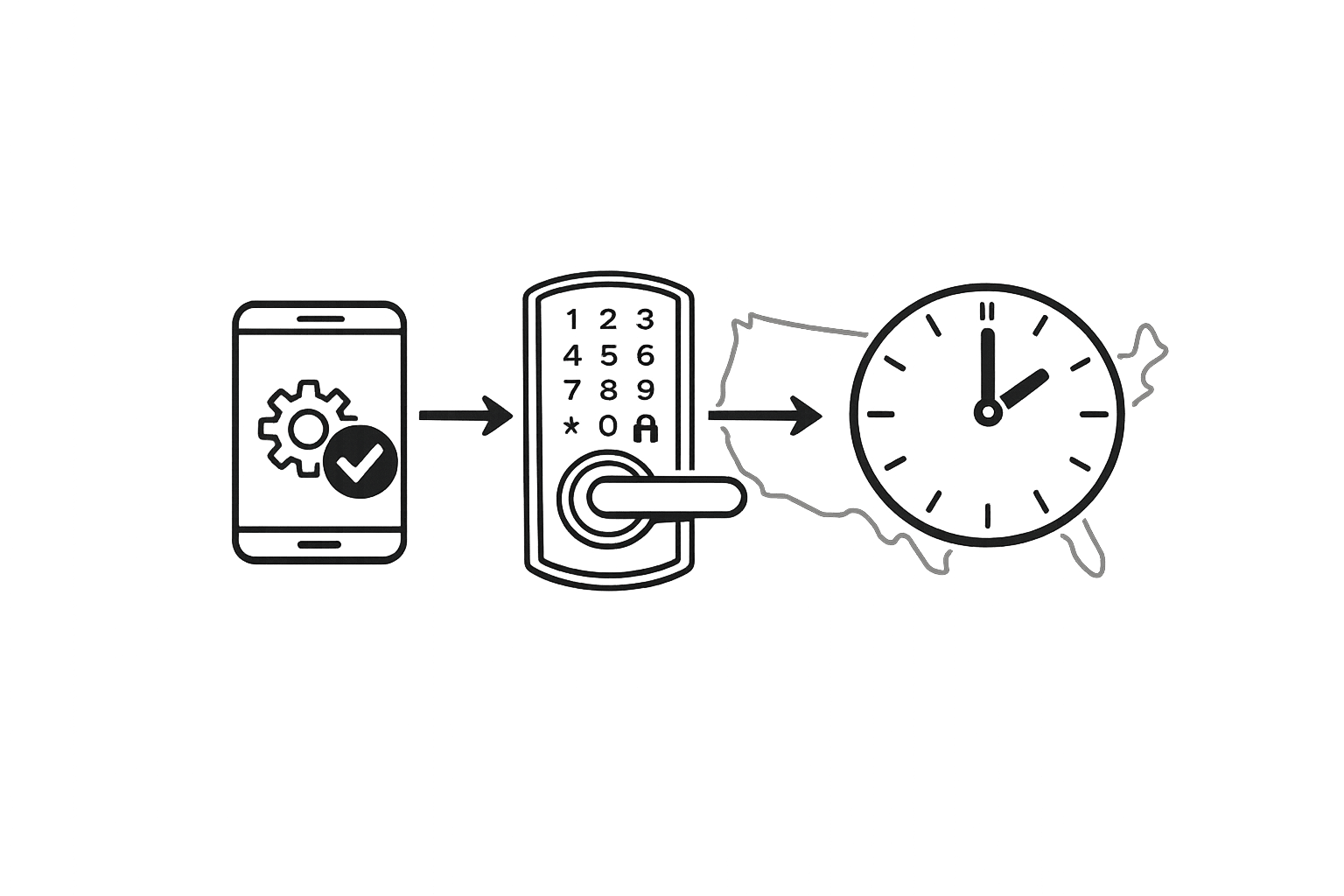
Once your devices and accounts are ready, take care of these region-specific settings to avoid time-related issues. Igloohome’s Duration PINs are highly time-sensitive, as they’re only valid during the exact booking window. To prevent any hiccups, make sure your lock’s time settings are accurate. For U.S. users, this includes enabling Daylight Saving Time (DST) in the app, ensuring access codes stay aligned with local time changes. A PIN expiring an hour early due to incorrect DST settings can cause unnecessary headaches for customers.
| Setting | What to Configure | | --- | --- | | Time Zone | Set to your local U.S. time zone (e.g., ET, CT, MT, PT) | | Daylight Saving Time | Enable DST in the app to avoid mismatched access codes | | Date/Time Format | Use MM/DD/YYYY and a 12-hour clock (AM/PM) for consistency | | Lock Naming | Assign location-specific names for easier multi-site management |
Keep your lock synced by staying within Bluetooth range and tapping "Sync" in the app. This updates activity logs, including PIN creation and unlock events, so you always have an accurate record of access [2].
sbb-itb-eb44693
Setting Up and Managing Locks in the Igloohome App
Adding and Pairing Locks
Once your devices are ready and accounts set up, it’s time to add and pair your locks. Start by creating a property profile in the app. Tap Add Lock, choose Property, and use the "+" icon to name the location and assign a region. Be sure to do this step first - skipping it can lead to a lot of extra work later, especially if you're managing multiple properties.
Next, activate the lock by pressing any key on its touchpad. The app will display a Product ID - simply select the matching ID to begin pairing. Make sure the lock blinks blue to confirm the connection is successful [1].
Keep in mind that each lock can only be paired to one account at a time. However, a single account can manage as many locks as you need across multiple devices [5]. If you’re planning to share access with a team, avoid sharing master account credentials. Anyone with access to the main account can change the Master PIN, reset locks, or even delete them entirely [5].
Organizing Locks by Location
The app’s "Properties" feature is key to staying organized, especially if you’re managing locks across multiple sites. Each property acts as a container for the locks at that specific location. For example, if you have a shared gate serving several rental units, you can assign that lock to multiple property listings. To do this, go to Settings > Associated Property within the app.
Using a clear and consistent naming format can make managing multiple locations much simpler. Try something like "Location – Unit – Lock Type" (e.g., "Austin Lot – Bay 3 – Padlock"). This approach not only keeps things tidy but also makes it easier to match locks to specific rental items if you’re using a platform like Iglooconnect. Businesses using these integrations have seen rental utilization rates increase by 200% [3].
Testing Locks for Functionality
Before connecting locks to a rental platform, it’s essential to test their functionality. Check all three access methods: Bluetooth unlock via the app, a manually generated PIN, and a physical key. Thanks to Igloohome's AccessAnywhere™ technology, PIN codes work even without Wi-Fi, so be sure to test offline PIN entry to ensure the lock responds correctly [6].
| Testing Step | Action | Expected Result | | --- | --- | --- | | Pairing | Select Product ID, tap touchpad | Blue light blinks; lock appears in app [7] | | Bluetooth Access | Tap "Unlock" in the app | Lock motor engages via Bluetooth [6] | | PIN Generation | Generate a Duration PIN in the app | Lock accepts code offline [6] | | Integration | Copy Exchange Code to management portal | Integration status shows "Complete" [1] |
Once your locks pass these tests, you’re ready to integrate them with Iglooconnect for streamlined rental management.
How to get started with iglooconnect
::: @iframe https://www.youtube.com/embed/QiQ_ToBHM-E :::
Configuring Iglooconnect for Integration
::: @figure Manual vs. Automated Rental Operations: Igloohome + Lockii Integration{Manual vs. Automated Rental Operations: Igloohome + Lockii Integration} :::
Setting Up Iglooconnect
Once your locks are set up and functioning correctly, it’s time to connect them via Iglooconnect. This step helps automate rental business operations and requires using both the web portal and the mobile app, each serving different purposes.
The web portal at connect.igloocompany.co is where you manage billing and integration slots. You’ll need to purchase one integration slot for each lock or enable Postpaid Billing if available [1][7]. Before purchasing, confirm that your lock models are compatible, as older devices might not work with this system [1].
Mapping Locks to Rental Items
To assign locks to specific rental items, switch to the mobile app. Go to the iglooconnect tab, tap Connected Services, and use the "+" icon to select the desired lock. Then, tap Connect to generate a unique Exchange Code for that lock [8].
Next, enter the lock’s Bluetooth ID and the Exchange Code into the integration portal. Once submitted, the lock’s slot status will change from _Pending_ to Active, signaling that it’s ready to generate PIN codes automatically for customer bookings [1][7]. To make things easier, use clear names for each lock during this process - examples like "Trailer #12" or "Kayak Rack B" can help streamline management, especially if you’re handling multiple locks.
After mapping your locks, compare how manual workflows stack up against automated processes to understand the efficiency gains.
Manual vs. Automated Workflows
Manual workflows demand staff presence at each location during operating hours to hand over keys or provide access codes. This approach is prone to errors, limits customer access, and increases staffing needs.
In contrast, Iglooconnect’s automated workflow, integrated with Lockii, takes care of the entire access process. When a customer books, a unique PIN code is automatically generated, valid only for the booking period. Tasks like identity verification, SMS and email confirmations, and return photo uploads are all handled automatically. Businesses using this system report that 95% of bookings require no staff involvement and note an average 200% increase in inventory utilization [3].
| Feature | Manual Process | Automated (Iglooconnect + Lockii) | | --- | --- | --- | | Availability | Business hours only | 24/7 [3] | | Staff Required | On-site | Remote monitoring via one dashboard [3] | | Error Rate | High (human error) | Low [3] | | Inventory Utilization | Low | Up to 200% increase [3] | | Staffless Bookings | Rare | 95% of all bookings [3] |
Testing and Best Practices
Testing the Integration
Once your locks are mapped and activated, it’s time to test the integration with a live booking. Before opening it up to customers, run a test reservation. Create a booking in Lockii and confirm that the connected Igloohome lock receives the command and generates a PIN code that matches the reservation’s exact start and end times [3]. This simple step helps catch common setup mistakes before they affect actual customers.
Two key checks are crucial during this process. First, make sure the Bluetooth ID in the portal matches the one in the Igloohome app. Even a small mismatch can break the connection [1]. Second, test the PIN code at the boundaries of the reservation period. Try it shortly before the start time and just after the end time to ensure access is limited to the reserved window [3]. For bookings across different U.S. time zones, confirm that the rental app’s time zone aligns with the lock’s local time.
Thanks to Igloohome’s AccessAnywhere™ technology, the PIN will work even if the lock doesn’t have Wi-Fi or cellular connectivity [6]. This is a game-changer for outdoor locations, remote equipment yards, or any area with unreliable signal coverage.
Troubleshooting Common Issues
If you encounter problems, they’re often tied to a few common causes. Start with these troubleshooting steps to keep everything running smoothly.
Bluetooth pairing errors are usually a result of being out of range. Ensure you’re close enough to the lock and that it’s blinking blue during pairing [1]. If the slot status remains stuck on _Pending_, double-check your billing setup - an incomplete payment setup can block activation [1]. For locks that don’t appear in the Connected Services list, confirm the device model is compatible before diving into more advanced debugging [1].
If PIN codes aren’t generating automatically, verify that the Exchange Code is entered correctly and that the slot status shows as Active in the iglooconnect dashboard [1].
Best Practices for U.S. Rental Operations
After successful testing, it’s time to integrate some best practices into your daily workflow. A consistent approach to lock naming and maintenance, as mentioned earlier, can simplify operations. Name every lock clearly when pairing it - for example, use names like "Trailer_Unit_04" or "Kayak_Rack_B." This reduces mapping errors and speeds up troubleshooting, especially when managing a large number of units [1].
Consider adding a 30- to 60-minute buffer before pickup and after return. This extra time accommodates early arrivals or slight delays, cutting down on support calls without significantly affecting booking capacity.
Make the most of Lockii’s audit logs. These logs track every PIN use, identity verification, and GPS event, creating a clear record of every transaction [4]. Pair this with end-of-hire photo requirements, where customers upload a photo before closing the booking. This step adds accountability and simplifies resolving damage disputes. As Matt Cole, owner of Empire Trailer Hire, puts it:
"It's saved me a heap of time and stress, and I can actually focus on running the business again." - Matt Cole, Owner, Empire Trailer Hire [3]
Lastly, take advantage of Lockii’s Maintenance Tracking feature. Use it to block out any unit needing service, which automatically prevents new PIN codes from being generated for that item during the maintenance period [4]. This ensures customers can’t accidentally book equipment that’s out of commission.
Conclusion
This guide has explored how integrating Igloohome locks with Lockii can simplify rental operations, turning a time-consuming process into a smooth, automated system. From the initial pairing of devices to generating PINs automatically, every step minimizes the need for manual effort.
One standout advantage is scaling with contactless models. Whether you're managing a single trailer or a fleet spread across various U.S. locations, this setup delivers consistent results. With AlgoPIN™ technology providing offline access, iglooconnect linking hardware and software, and Lockii centralizing tasks like bookings, identity checks, GPS tracking, and customer communication, the system ensures efficiency at every level.
The impact is undeniable. For instance, Restavio successfully eliminated on-site staff in multiple cities by adopting Igloohome hardware, enabling fully independent guest check-ins around the clock. Similarly, Mario Clewlow of Hitch Haul shared:
"Lockii has been a game changer for our trailer rental business. We now offer fully automated, contactless rentals. It's streamlined, secure, and exactly what our business needed to jump in front of our competitors!"
This example highlights how businesses can thrive using this scalable and efficient solution.
FAQs
::: faq
Do I need Wi-Fi at the lock for PINs to work?
No, Wi-Fi isn't necessary for PIN codes to work. Igloohome devices rely on offline _algoPIN™_ technology, enabling them to create and verify PIN codes without any internet connection. :::
::: faq
How many iglooconnect slots do I need?
To connect with iglooconnect, you’ll usually need one slot for each lock. Make sure to buy enough slots to cover the total number of locks you want to connect. However, some providers might offer postpaid plans, which can remove the need to purchase individual slots. During setup, check the requirements on the iglooconnect platform to ensure everything is compatible. :::
::: faq
What should I do if the lock’s PIN times are off?
If the PIN times on your lock seem off, head to the lock's settings in your app and check the _Logs_ section. While you're within Bluetooth range, perform a manual sync to refresh the lock's activity. Also, double-check that your booking software's timezone aligns with your property's local time to prevent any scheduling mishaps. A tool like Lockii can simplify this process by automating these settings, ensuring secure and timely access for your rental property. :::